Install on Linux
System Requirements
- OS version:Ubuntu 22.04+, Debian 11+, Fedora 38+
- Memory: 4GB
- CPU: 2 cores
Installation Instructions
Native .deb packages are available for Debian/Ubuntu-based systems. For other Linux distributions, the portable .AppImage format is recommended.
Method 1: DEB Package
Installation
The .deb format is the native installer for Debian-based systems. After installation, the app will be automatically added to your system application menu with a desktop shortcut.
- Download the latest
.debpackage. - Double-click the
.debfile for graphical installation. Alternatively, run the following commands in your terminal:
sudo apt update
sudo apt install ./PileaX-version-amd64.deb
Uninstallation
sudo apt remove pileaxMethod 2: AppImage
AppImage is a portable software distribution format for Linux. No installation is required after downloading — you can launch the app directly.
- Download the
.AppImagefile. - Double-click the
.AppImagefile to launch PileaX instantly without installation.
AppImageLauncher
By default, AppImage files will not be integrated into your system app list or create desktop shortcuts. AppImageLauncher solves this by integrating AppImage apps into your desktop environment.
Install AppImageLauncher (Ubuntu example):
sudo add-apt-repository ppa:appimagelauncher-team/stable
sudo apt update
sudo apt install appimagelauncher
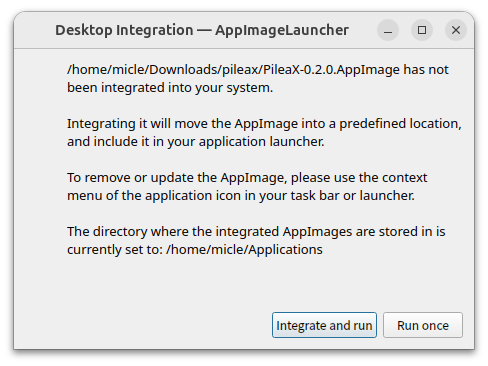
Once installed, you will see an integration prompt when launching PileaX next time: